Securing the API Specification UI
How to require authentication for accessing your API's specification.
Documentation for the APIs created in Frends is automatically exposed through an API Specification UI — an interactive Swagger UI hosted on the Agent's URL.
By default, this page is publicly accessible to anyone who knows the address, which means anyone can view the structure of your API, including endpoint paths, parameters, and request/response schemas. The API itself is separate and will have its own authentication configured through API Policies, so accessing the Specification UI does not automatically grant access to call the API.
If you want to prevent unauthorised parties from viewing the general design and structure of your API, you should restrict access to this UI. This guide walks through how to lock the API Specification UI and configure an API Key policy to control who can view it.
Prerequisites
Before getting started, make sure you have the following in place:
An API already created and deployed in Frends API Management. The API should have at least one active Process linked to it, as the API Specification UI button is only active when there are deployed Processes available in an Agent Group.
You also need sufficient permissions in your Frends Tenant to manage API Policies and create API Keys in Administration settings.
Locking the API Specification UI
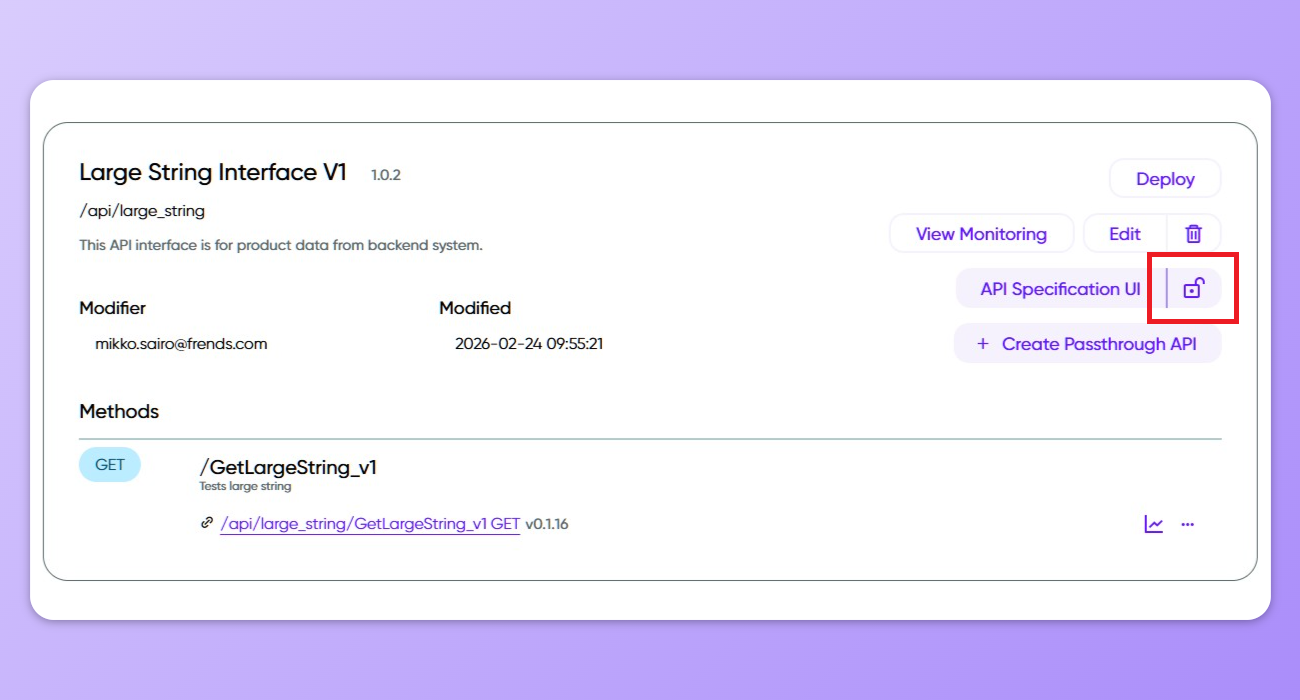
The first step is to lock the API Specification UI from the API Management view. Navigate to APIs > API Management and open the API you want to secure. On the API's detail page, locate the lock icon next to the API Specification UI button and click it to toggle access restriction on.
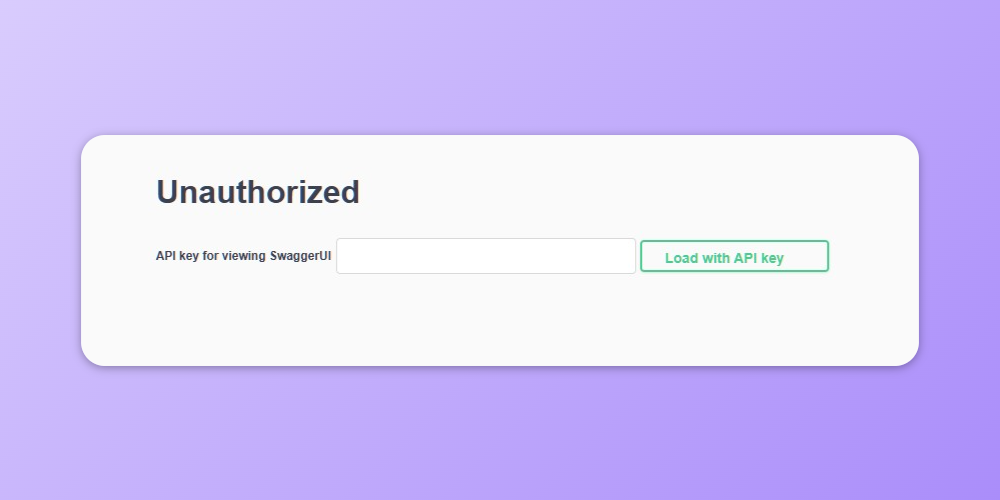
Once locked, the API Specification UI will prompt anyone attempting to open it for an API Key before displaying the API definition. This prompt is enforced by the lock itself, regardless of whether an API Policy and Key has been configured. An API Policy is required to define which API Keys are valid — without one, no key will be accepted and the UI will remain inaccessible. The following steps walk through creating the key and the policy.
Creating an API Key
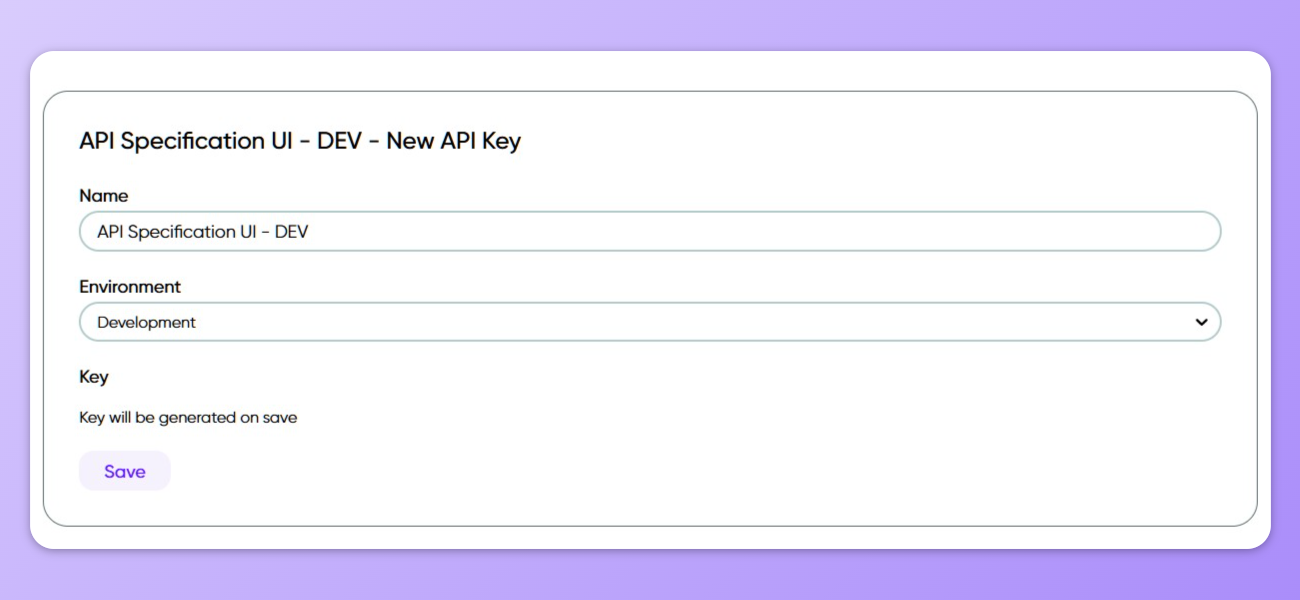
API Keys in Frends are managed centrally under the Administration section. Navigate to Administration > API Keys and click New API Key in the top-left corner.
Give the key a descriptive name so you can identify it later, and select the Environment it should apply to. After saving, the key value is generated automatically. Note that the key value cannot be modified after creation — only the name and environment can be changed — so make sure to copy and store the key value securely when it is first created.
Configuring an API Policy with API Key Authentication
With the API Key created, the next step is to set up an API Policy that defines the valid key for the locked API Specification UI. Navigate to APIs > API Policies and click + Create new.
Policy Details
Give the policy a clear name and optionally add a description and tags to help organise it. Under the Target Endpoints section, set the endpoint path to the API's specification definition URL. This is constructed by taking the API's base URL and wrapping it as follows:
For example, if your API's base URL is /api/ai-example/v1, the target endpoint path would be:
If you want to use the same API Key for the actual API, you can also specify the API's endpoint URLs here, or add the API Specification UI's URL to the API's own API Policy. They can of course also be separate, and the API itself can use any authentication method you prefer.
Adding an Identity
Scroll down to the Identities section and ensure that Public access is disabled. Click New identity to add an authentication method.
Select API key as the identity type and provide a name for this identity. The API Key location and API Key name fields can be left as their defaults or configured to any preferred location — the API Specification UI lock mechanism accepts the key regardless of where it is defined to be passed.
Once the identity is configured, add the API Key you created earlier by selecting it from the list of available keys. Multiple keys can be added to a single identity and they will share any throttling settings defined on that identity. If you need to apply different throttling limits to different consumers, create separate identities for each.
Click Add identity to confirm, then click Save Changes to apply the policy.
Accessing the Secured API Specification UI
With the lock enabled and the API Policy in place, opening the API Specification UI will immediately present an API Key input field. Enter the key value and click Load with API Key. If the key is valid, the full API Specification UI loads, displaying the endpoint structure, paths, and schemas defined for your API.
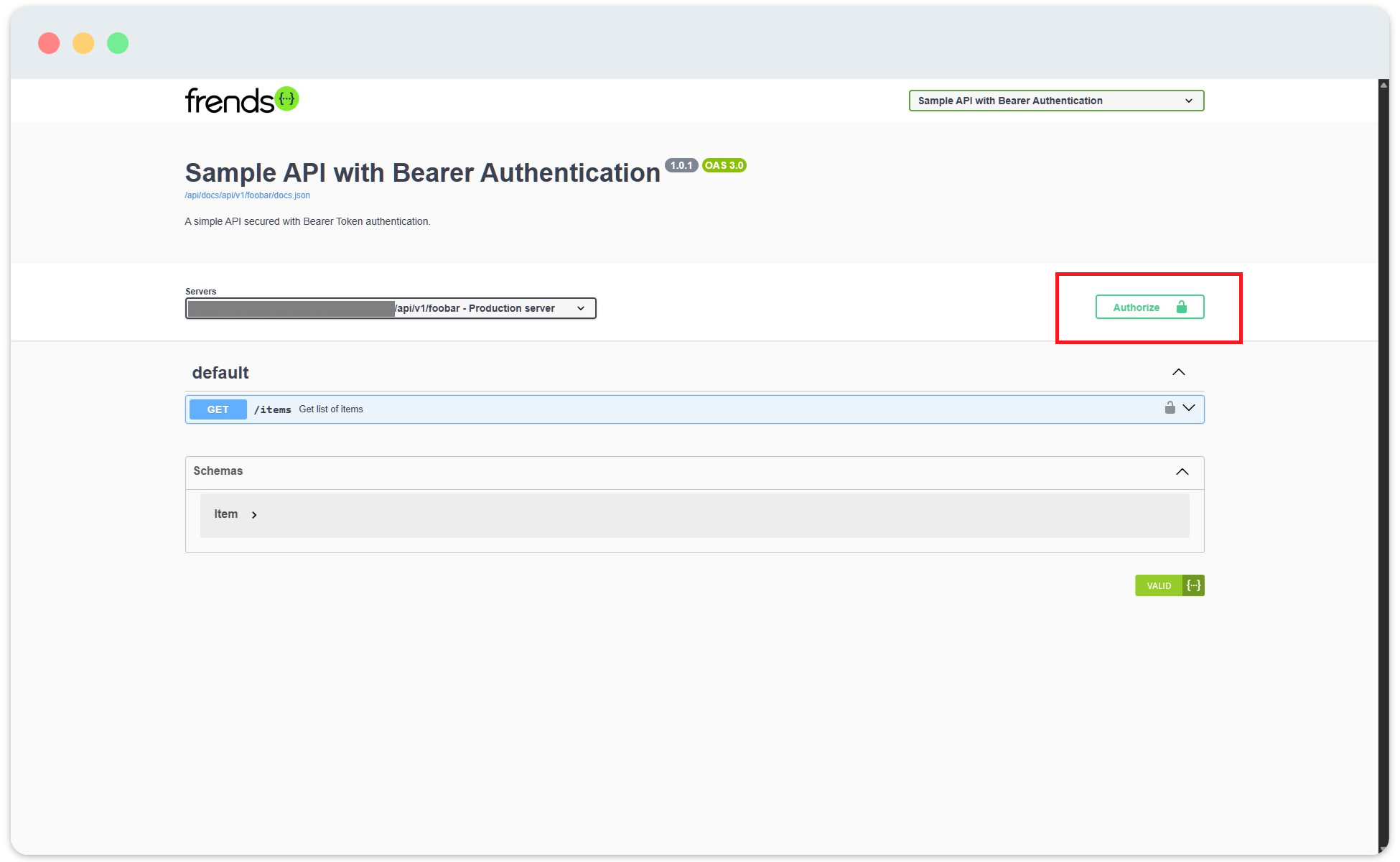
Once the Specification UI is open, you may also see an Authorize button within the Swagger UI itself. This is separate from the lock mechanism — it is used to authenticate against the API's own endpoints, allowing you to test requests directly from the UI if the API requires authentication.
Last updated
Was this helpful?