> For the complete documentation index, see [llms.txt](https://docs.frends.com/llms.txt). Markdown versions of documentation pages are available by appending `.md` to page URLs; this page is available as [Markdown](https://docs.frends.com/reference/frends-6.2.0/api-management/api-monitoring.md).
# API Monitoring
API Monitoring in Frends provides a view into incoming API traffic in a Tenant. It helps you inspect what requests reached your environment, how they were handled, and what response was returned. The page is intended for detailed operational monitoring, especially when you need to review a specific request, investigate unexpected traffic, or confirm how an API endpoint behaved over a selected time range.
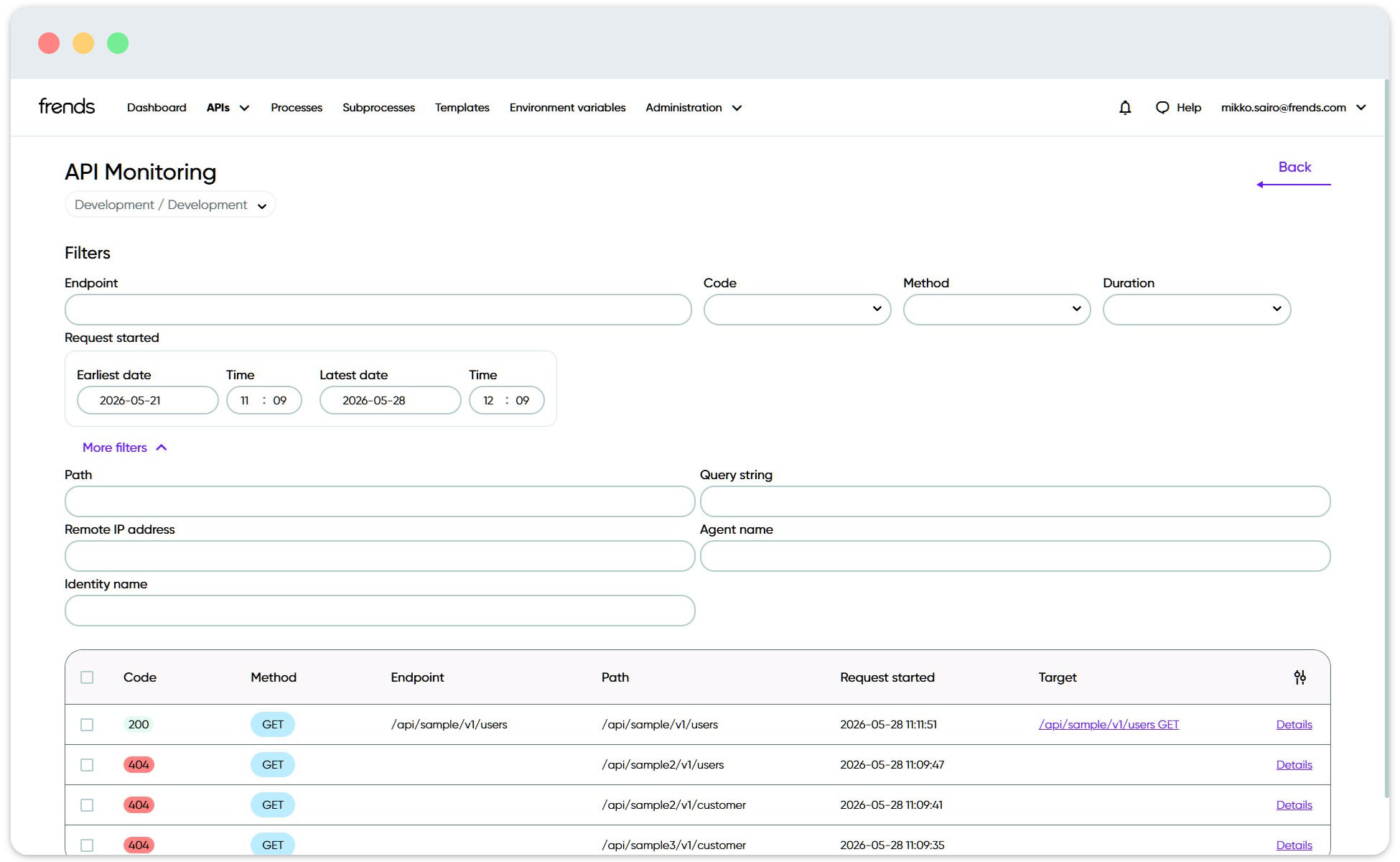
API Monitoring view.
## API Monitoring
The API Monitoring page shows all connections made into your Tenant and what happened with them. This includes requests made to defined API endpoints and also requests that did not match any configured endpoint. Because of this, the page is useful both for normal API follow-up and for identifying unsolicited traffic against the environment. In environments that use High Availability, the Agent-related information helps identify which Agent handled a specific request. This can be useful when comparing behavior across multiple runtime nodes.
API Monitoring is available under the APIs area and presents filtering tools at the top of the page and a results table below them.
### Permissions
Access to API Monitoring is controlled through role-based permissions. The available permissions are `ApiMonitoring.*`, which grants all permissions for the feature, `ApiMonitoring.View`, which grants access to view the page, and `ApiMonitoring.Edit`, which grants edit permissions where applicable in the UI and configuration.
## How to Use API Monitoring
The API Monitoring page is used by selecting a time range, applying filters, and reviewing the request entries returned in the table. The basic workflow is to narrow the result set first and then open the request-level details for a single entry when deeper inspection is needed.
### Opening and Filtering the View
**API Monitoring** is available under **APIs** menu item in Frends.
At the top of the page, the main filter row provides basic search criteria including endpoint, response code, HTTP method, and duration, along with a `Request started` date and time range. Selecting `More filters` expands additional fields for more targeted searches, including path, query string, remote IP address, Agent name, and identity name.
### Log Table
Below the filter section, API Monitoring displays a table of matching request entries. Each row represents a single logged API request and includes a `Details` action that opens the request-level detail view. The results table also supports optional columns beyond the defaults, with visible column selections saved per user in local storage.
### Opening Request Details
Selecting `Details` for a row opens a more detailed view of the selected request. Depending on logging configuration, the view can also include request and response header information.
\[Placeholder for screenshot: Request details view showing the fields available for a single API request, including request metadata and any logged request or response headers.]
## Fields, Filters, and Values
This section describes the fields available in the API Monitoring page in the order they appear in the UI.
### Environment Selector
At the top of the page, below the page heading, the environment selector allows you to choose which environment's monitoring data is shown on the page.
### Main Filters
The main filters are always visible at the top of the page and cover the most common search criteria.
#### Endpoint
Limits results to a specific API endpoint or operation.
#### Code
Filters by the returned response status code. This helps locate requests with a particular outcome, such as successful responses or client and server errors.
#### Method
Filters by the HTTP method used by the request, such as `GET`, `POST`, `PUT`, or `PATCH`.
#### Duration
Narrows the result set based on request duration.
#### Request started
Defines the date and time range for the search. It contains `Earliest date`, `Time`, `Latest date`, and `Time` inputs, and limits results to requests started during the selected time window.
### Additional Filters
Selecting `More filters` expands additional search criteria for more targeted searches.
#### Path
Filters by the requested path. This is especially useful for requests that never matched a configured Process or API endpoint, because the path is still logged.
#### Query string
Filters by the request query string. This can help identify a specific variant of a request when multiple calls use the same path but different parameters.
#### Remote IP address
Filters by the client IP address associated with the request. This is useful when investigating requests from a specific caller or source network.
#### Agent name
Filters requests by the Agent that handled them. This is particularly useful in High Availability configurations.
#### Identity name
Filters by the authenticated identity associated with the request, where identity information is available.
### Results Table Fields
The results table shows one row per logged API request. Each row includes a `Details` action that opens the request-level detail view.
#### Code
The HTTP response code returned for the request.
#### Method
The HTTP method used for the request.
#### Endpoint
The endpoint or operation associated with the request when a matching API definition exists.
#### Path
The path that was requested. This value can be present even if the request did not map to a configured endpoint.
#### Request started
The timestamp when the request began.
#### Target
The resolved target for that request, shown as a linked value referencing the API route and method.
### Details View Fields
When you open a row from the results table, the details view provides a more complete record of the request. The exact set of fields depends on what was captured and how logging is configured.
#### Request started
The timestamp when the request began.
#### Agent name
The Agent that handled the request.
#### Api operation
The matched API operation, if any.
#### Code
The HTTP response code returned for the request.
#### Method
The HTTP method used for the request.
#### Origin
The origin of the request.
#### Path
The path that was requested.
#### Query string
The query string included in the request, if any.
#### Remote IP address
The client IP address from which the request originated.
#### Target
The resolved target for the request.
#### Identity
The authenticated identity associated with the request, where available.
#### Duration
The time taken to process the request.
#### Process execution Id
The identifier of the Process execution linked to this request, where applicable.
#### Process version
The version of the Process that handled the request, where applicable.
The details view can also include request and response header information. Header visibility and similar request-level data depend on which logging fields are enabled in the API policy logging settings.
## Logging Behavior
API Monitoring records all requests made against the Tenant, not only requests against defined endpoints. This makes the page suitable for both operational monitoring and for detecting traffic that did not reach any configured API route.
API policy logging settings affect what data is available for inspection, especially in the details view. Header visibility and similar request-level data depend on which logging fields are enabled. Linked Process executions are logged according to Environment-level logging settings.
---
# Agent Instructions
This documentation is published with GitBook. GitBook is the documentation platform designed so that both humans and AI agents can read, navigate, and reason over technical content effectively. Learn more at gitbook.com.
## Querying This Documentation
If you need additional information that is not directly available in this page, you can query the documentation by asking a question.
Perform an HTTP GET request on the following URL with the `ask` and `goal` query parameters:
```
GET https://docs.frends.com/reference/frends-6.2.0/api-management/api-monitoring.md?ask=&goal=
```
`ask` is the immediate question: it should be specific, self-contained, and written in natural language.
`goal` is what the user is ultimately trying to achieve, the reason they need the answer. Sharing it helps GitBook give you a better, more relevant answer. A goal is most helpful when it describes the outcome the user wants rather than restating the question. For example, with `ask=how do I create an API token`, a goal like `automate deployments from our CI pipeline` lets GitBook tailor the answer to that use case.
The response will contain a direct answer to the question and relevant excerpts and sources from the documentation.
Use this mechanism when the answer is not explicitly present in the current page, you need clarification or additional context, or you want to retrieve related documentation sections.