> For the complete documentation index, see [llms.txt](https://docs.frends.com/llms.txt). Markdown versions of documentation pages are available by appending `.md` to page URLs; this page is available as [Markdown](https://docs.frends.com/reference/frends-6.3.0/process-development/task-unit-testing.md).

# Task Unit Testing

Run a single Task in isolation from the Process Editor.

Task unit testing lets you run a single Task from the Process Editor with values you type in, and check what it returns, without running the rest of the Process. It helps you confirm that a Task is configured correctly and returns what you expect before you connect it to the rest of the flow.

{% hint style="info" %}
Task unit testing is a Process Editor feature. It is not the same as the unit tests that Task developers write for Task source code and run in Visual Studio. For those, see [Creating Custom Tasks](/tasks/task-guides/creating-custom-tasks.md).
{% endhint %}

## What is Task unit testing?

A Task unit test runs one Task shape on an Agent, using test values that belong only to the test. The other shapes of the Process are not executed, and the Task parameters in your Process stay as they are.

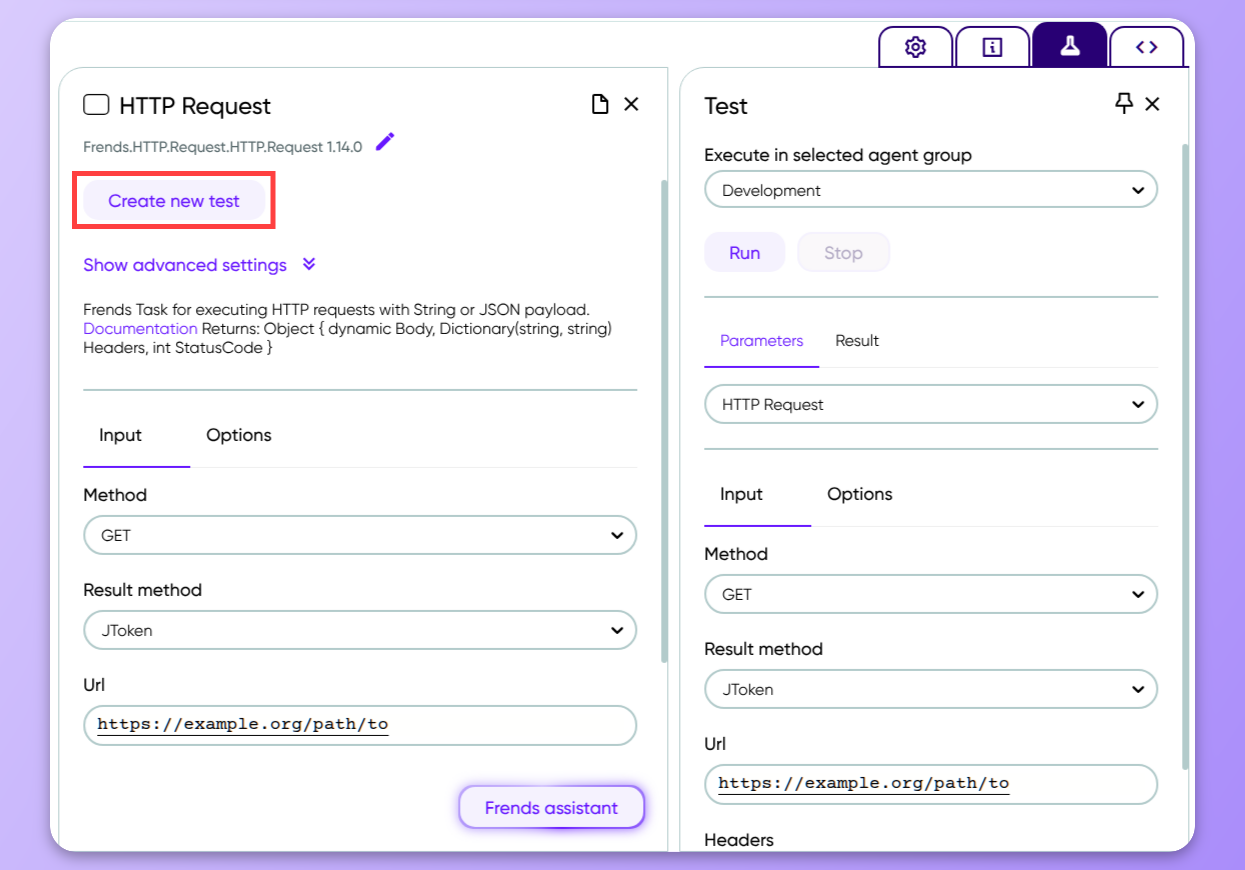
You run tests from the **Test** panel in the Process Editor. The panel opens next to the Task parameters, so you can see both at the same time.

<figure><img src="https://content.gitbook.com/content/EbwKwRCA9A5AdXVuPum4/blobs/vYDWXGVzQTRvnisyn1ZA/image.png" alt=""><figcaption><p>The Test panel and its controls.</p></figcaption></figure>

## Requirements

Running a test needs an active Agent in the Agent Group the test runs in, because the Agent is what executes the Task. The Agent Group must also have the **Allow running test Processes** setting enabled. You find it in the **Advanced settings** of the Agent Group under **Administration > Environments**. It is enabled by default in the Development Agent Group. Keeping it disabled for production Agent Groups prevents test runs there. The setting is described in more detail in [Agent Groups](/reference/frends-6.3.0/administration/environments-and-agent-groups/agent-groups.md).

If your test values refer to Environment Variables with `#env`, save the variables first. Otherwise the test fails with a variable not found error.

## How a test runs

When you click **Run**, the selected Task is executed on an Agent in the Agent Group shown in **Execute in selected agent group**, using the values on the **Parameters** tab. Only that Task is executed. The other shapes of the Process are not run, and the Process configuration is not changed. The result is returned to the Test panel and shown on the **Result** tab. If the Agent Group has no active Agent, or **Allow running test Processes** is not enabled for it, the test cannot run.

For a step-by-step walkthrough of creating and running a test, see [How to Test Processes and Tasks](/guides/development/how-to-test-processes-and-tasks.md).

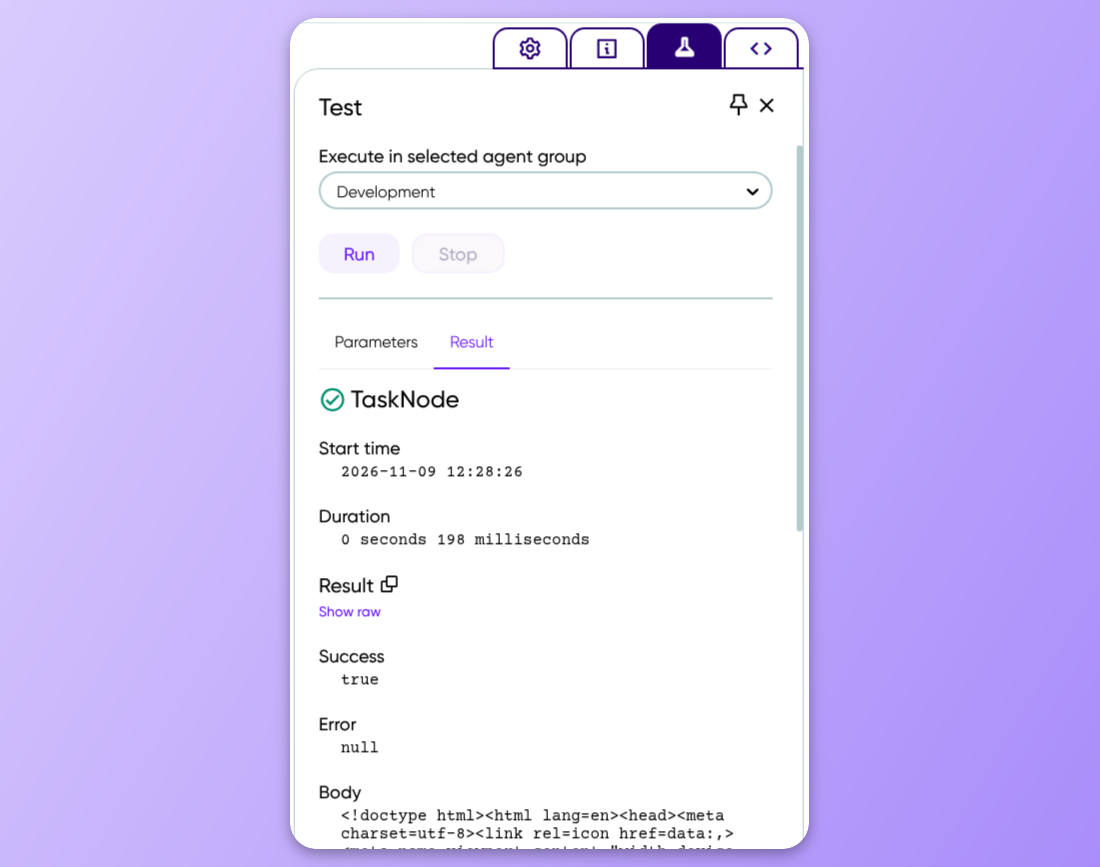
<figure><img src="https://content.gitbook.com/content/EbwKwRCA9A5AdXVuPum4/blobs/XJxoMLCgU8go0PhUqS43/image.png" alt=""><figcaption><p>Create new test opens the Test panel for the selected Task.</p></figcaption></figure>

## Test panel controls

The Test panel has a header titled **Test** and the controls described below. The values you enter in the panel do not change the Process.

### Create new test

Button in the Task parameters, above **Show advanced settings**. It opens the Test panel for the selected Task shape.

### Select a Task

Dropdown that shows the Task the test runs.

### Execute in selected agent group

Dropdown that sets the Agent Group the test runs in, for example Development. The Agent Group needs an active Agent and the **Allow running test Processes** setting.

### Run

Button that runs the Task once with the values on the **Parameters** tab.

### Stop

Button that stops a test that is still running.

### Parameters

Tab with the same input fields as the Task's parameters. The values you enter here are used only by the test.

### Result

Tab that shows the outcome of the test run: the result object when the Task succeeds, or the error message and details when it fails.

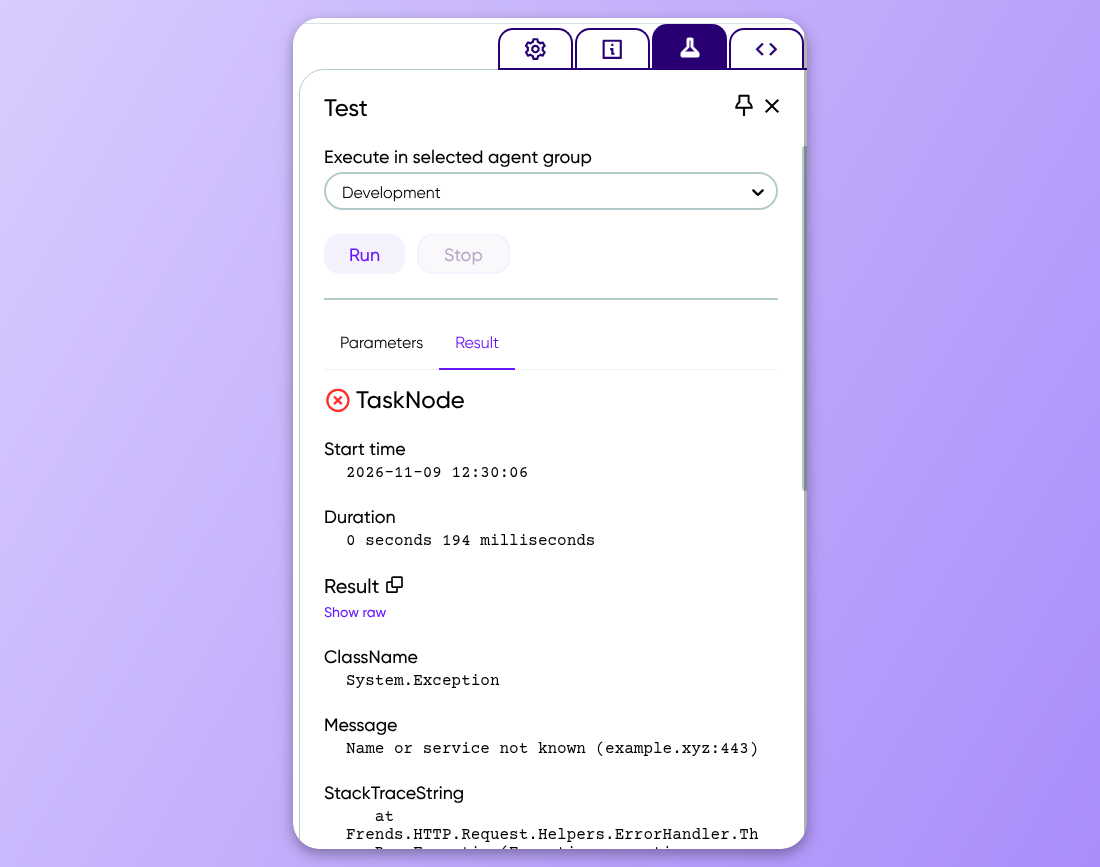
<figure><img src="https://content.gitbook.com/content/EbwKwRCA9A5AdXVuPum4/blobs/LepyScdRGoq82LHrWbtR/image.png" alt=""><figcaption><p>Successful results of the Task execution.</p></figcaption></figure>

## Test values

The **Parameters** tab shows the same fields as the Task's parameters, but the values you enter are independent from your Process. Changing them does not change the Process configuration.

Because a test runs the Task on its own, values that normally come from elsewhere in the Process are not available. Static values, such as a URL or a number, work as they are. So do Environment Variables referenced with `#env`, as long as the variables are saved. References to Trigger data, `#result` and `#var` do not work in a test, so replace them with literal sample values. If a Task uses the result of an earlier shape, paste a sample of that data as the value. For example, if a Sleep Task has `#var.seconds` as its **Seconds** value in the Process, the test cannot resolve it and fails to compile. Enter a literal value such as `2` on the **Parameters** tab instead. The Process keeps using `#var.seconds`.

## Results

The **Result** tab shows the outcome of the test run. The outcome is one of three kinds: a result from the Task, an error from the Task, or an error that prevents the Task from running with the given values.

### Successful result

When the Task completes successfully, the full result object is shown in the same structure as in a Process Instance log. Structured results such as JSON can be expanded to inspect single properties.

<figure><img src="https://content.gitbook.com/content/EbwKwRCA9A5AdXVuPum4/blobs/LepyScdRGoq82LHrWbtR/image.png" alt=""><figcaption><p>Successful results of the Task execution.</p></figcaption></figure>

### Errors

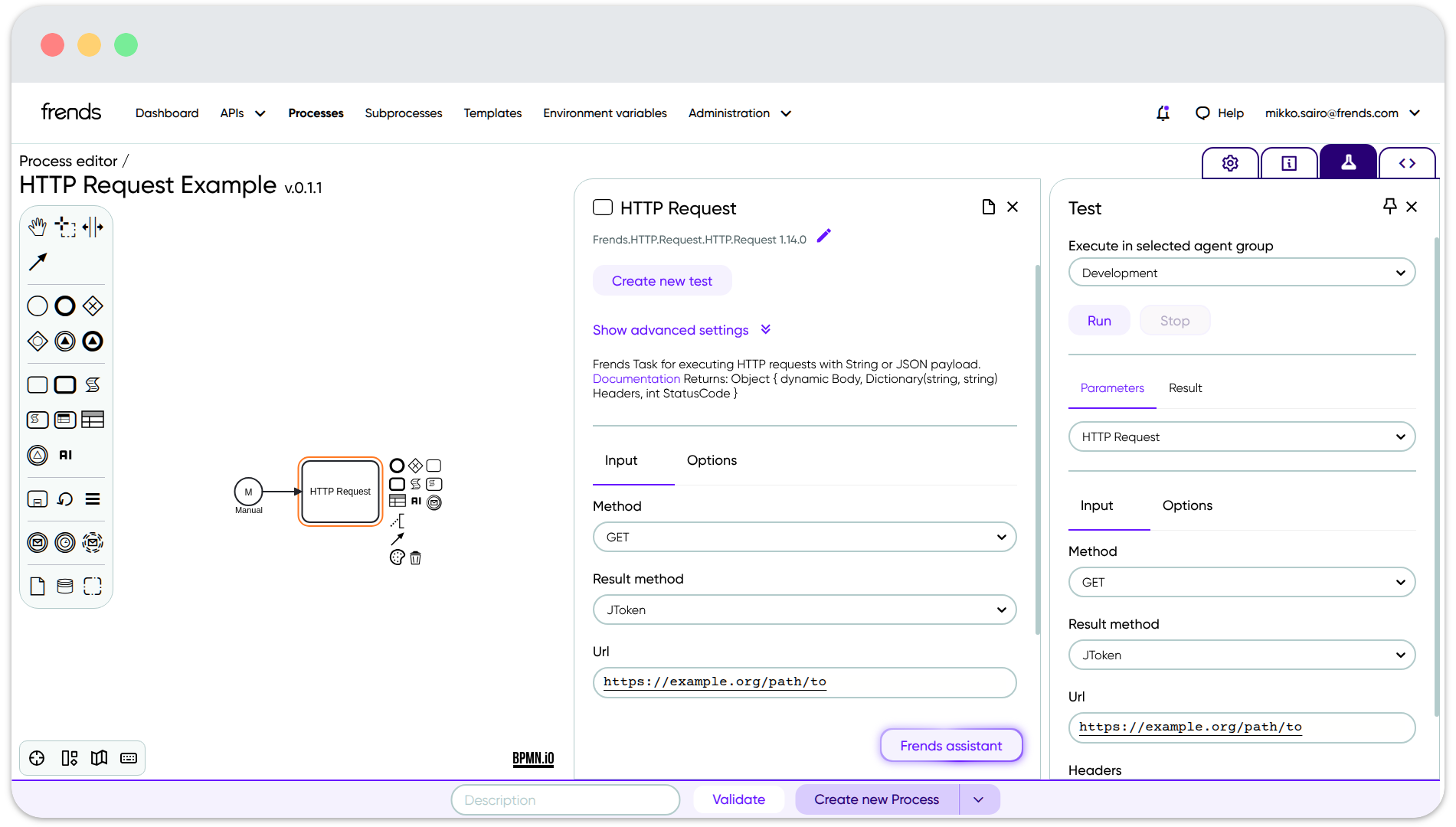
When the Task itself fails, the error message and details returned by the Task are shown. When the test values refer to something that is not available in a test, the test fails before the Task runs. This happens when a value refers to `#var`, `#result` or Trigger data, which are not available because only the Task is executed, and when a value refers to an Environment Variable that has not been saved, which causes a variable not found error.

All of these errors are shown on the **Result** tab. They are not Process validation errors, so a failed test never blocks saving or validating the Process.

<figure><img src="https://content.gitbook.com/content/EbwKwRCA9A5AdXVuPum4/blobs/Hu3zwTAcaTYnu3bPD27R/image.png" alt=""><figcaption><p>A failed test shows the error message and details.</p></figcaption></figure>

## Limitations

A Task unit test runs one Task only, so no other shapes of the Process are executed and no data from earlier shapes is available. Test values must be literal values or Environment Variables.

The Call Subprocess shape cannot be tested with Task unit testing. To test a Subprocess, use **Run once** from the Subprocess list, or run the parent Process and follow the Subprocess execution in Process Instances.

## Test panel and Run once

The Test panel and **Run once** complement each other. The Test panel runs one Task with the values you type in and shows the result in the panel, which makes it a quick way to check that a single Task is configured correctly. **Run once** runs the whole saved Process, with the Manual Trigger parameters as input, and shows the outcome in the Process Instance view, which makes it the way to check the full flow.

## Troubleshooting

If you cannot run a test, or the test fails, first check that the Agent Group has an active Agent and that **Allow running test Processes** is enabled for it. Next, make sure the Environment Variables used in the test values are saved, because unsaved variables cause a variable not found error. Finally, check that the test values do not refer to `#result`, `#var` or Trigger data, and that the selected Task is not a Call Subprocess shape.

I recorded the editor-versus-published heading rule in the skill's style guide and in memory. Future drafts will give the title and description as separate fields and use editor heading levels in the body.

The replacement text for the Process Editor page is unchanged from my earlier message. It has no headings, so the level shift doesn't affect it.


---

# Agent Instructions
This documentation is published with GitBook. GitBook is the documentation platform designed so that both humans and AI agents can read, navigate, and reason over technical content effectively. Learn more at gitbook.com.

## Querying This Documentation
If you need additional information that is not directly available in this page, you can query the documentation by asking a question.

Perform an HTTP GET request on the following URL with the `ask` and `goal` query parameters:

```
GET https://docs.frends.com/reference/frends-6.3.0/process-development/task-unit-testing.md?ask=<question>&goal=<user_goal>
```

`ask` is the immediate question: it should be specific, self-contained, and written in natural language.
`goal` is what the user is ultimately trying to achieve, the reason they need the answer. Sharing it helps GitBook give you a better, more relevant answer. A goal is most helpful when it describes the outcome the user wants rather than restating the question. For example, with `ask=how do I create an API token`, a goal like `automate deployments from our CI pipeline` lets GitBook tailor the answer to that use case.

The response will contain a direct answer to the question and relevant excerpts and sources from the documentation.

Use this mechanism when the answer is not explicitly present in the current page, you need clarification or additional context, or you want to retrieve related documentation sections.