How to Test Processes and Tasks
How to run single Tasks and Processes for testing.
Testing is a core part of building integrations in Frends. The platform provides two complementary testing tools that fit directly into the development workflow: the Task unit test feature in the Process Editor, which lets you verify a single Task's configuration in isolation, and the Run once feature, which executes the full Process so you can validate the complete flow. Used together, they make it straightforward to catch issues early and narrow down problems quickly.
Requirements
Both testing features require an active Agent in the Agent Group you are targeting. Without a running Agent, neither Tasks nor Processes can execute.
For Task unit tests specifically, the Agent Group must also have the Allow running test Processes setting enabled. This is found in the advanced settings of the Agent Group configuration under Administration > Environments. The default Development Agent Group has this enabled out of the box.
Your Process must be saved before it can be executed with Run once. Frends validates the Process on save, so a successful save confirms the Process is ready to run.
Testing a Task in the Process Editor
The Process Editor includes a built-in unit test feature for Task shapes. It lets you execute a single Task with values you provide directly in the editor and inspect the result, without having to run the entire Process. This is particularly useful early in development when you want to confirm that a Task is correctly configured and returns the expected output before wiring it into the full flow.
Creating and Running a Task Test
Click on the Task shape you want to test. The right-hand sidebar will display the Task's parameter fields. Below the parameters and above the Show advanced settings toggle, you will find a Create new test button. Click it to open the unit test panel for that shape.

The unit test panel shows the same input fields as the parameters panel, but lets you fill in static test values independently from the actual Process configuration. This means you can provide concrete inputs without modifying the expressions already configured in your Process. Fill in the test values and click Run test. Frends executes the Task in the Agent Group selected for your editor session and displays the result directly in the panel.
Environment Variables in Task Tests
If your Task parameters reference Environment Variables using #env, those variables must be saved and available in the Agent Group before the test runs. Environment Variables that have been created in the editor session but not yet saved to the backend may not resolve correctly. If a test fails with a variable not found error, go to the Environment Variables page, save the variable, and then re-run the test.
Interpreting Task Test Results
If the Task completes successfully, the full result object is shown in the unit test panel, in the same structure you would see in a Process Instance log. For Tasks that return structured data such as JSON objects, you can expand the result to inspect individual properties. If the Task encounters an error, the error message and available details are shown instead. Use the error information to adjust your input values or review the Task configuration in the parameters panel above.
Limitations
The Task unit test feature tests a single Task in isolation. It does not execute any other shapes in the Process and does not have access to data that would normally come from earlier shapes, such as Trigger data or results from preceding Tasks referenced via #result. All test inputs must be provided as concrete static values.
The Call Subprocess shape cannot be tested using this feature. To test a Subprocess, use Run once from the Subprocess list, or run the parent Process and observe the Subprocess execution through Process Instances.
Testing the Full Process with Run Once
Once individual Tasks are working correctly, the next step is validating the full Process flow. The Run once feature lets you manually execute any Process without relying on an automated Trigger. This is the primary method for integration testing during development.
How to Manually Execute a Process
In order to run a Process when you need it, instead of relying on automation from the different Triggers, there's a useful action called Run once for the Processes and Subprocesses in Frends. This will execute the Process with the Manual Trigger commonly available in Processes.
Step by Step Tutorial Available
If you prefer more visual or interactive guidance on how to run Processes manually in Frends, you can find a step-by-step walkthrough from your own environment's home page, under Onboarding by selecting "Tutorial 1, Step 4: Running the Process" tutorial.
Requirements
To run a Process manually or automatically through Triggers, an Agent is required in the Agent Group the Process is deployed to. Agents are what actually perform the actions defined within Processes, so in addition to Environment and Agent Group, you will also need an Agent on a server or computer to run Processes.
Frends at a minimum comes with Development Environment with a Cloud Agent set up, so it's not required to have your own Agents running to follow this guide, but for other purposes than light testing or development, it's recommended to set up your own Agent as well.
Having a Manual Trigger in Process is not required. In case there is no Manual Trigger in a Process, an implicit Manual Trigger with no parameters will be used to trigger the Process. However, if the Process expects some values from an API Trigger for example, the values cannot be provided and the Process execution will likely fail.
How to run Process once
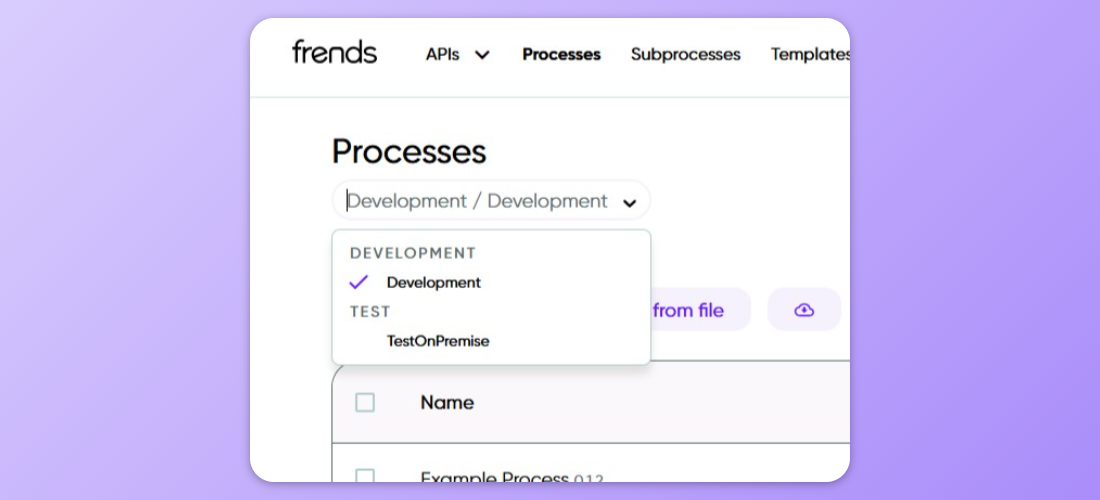
In order to run a Process manually, head over to Process list and select the Agent Group you would like to execute the Process in.

When correct Agent Group is selected, find your Process from the Process list and click on the ellipsis button to open Process actions.
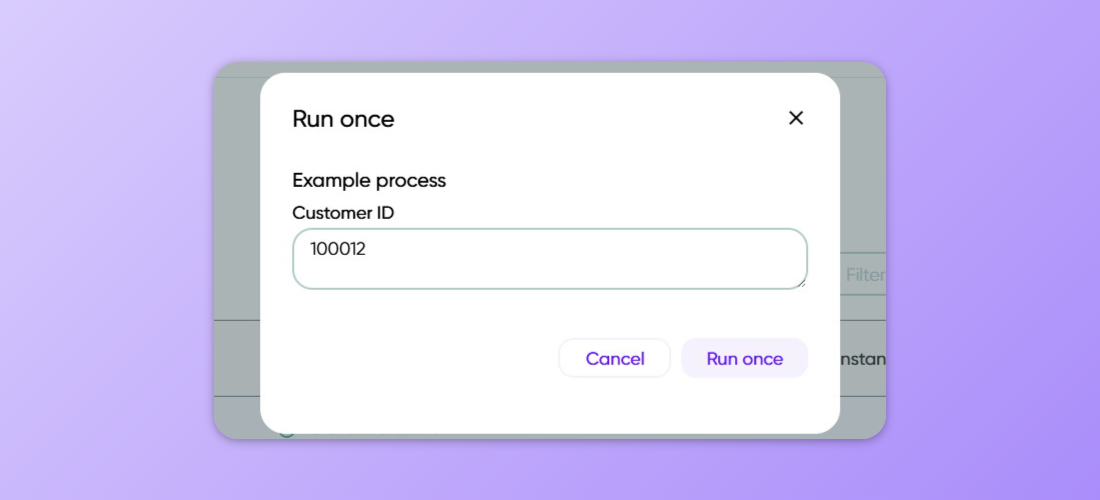
You can then select Run once to launch the Process.

In case there are any parameters defined in the Process's Manual Trigger, the values will be prompted from the user before starting the Process. If there are no parameters defined, the Process will launch immediately.
Once the Process has started execution, you can go ahead and open the Process Instances for the Process to see what is being done within the Process execution.

Viewing Process Instance Results
After execution, navigate to Process Instances to see the results.
How to View Process Instances
In order to see what happened during integration flow execution, Frends has a view called Process Instance.
Step by Step Tutorial Available
If you prefer more visual or interactive guidance on how to view Process logs with Frends, you can find a step-by-step walkthrough from your own environment's home page, under Onboarding by selecting "Tutorial 2b, Step 2: Process Logs" tour.
Accessing process instances
The Process Instances are accessible through Process list by selecting Show Process instances. You can also access the Process Instance list by clicking on Last execution or Instance counts per day columns from the Process list.

Then selecting any of the Process Instances on the Process Instance list will take you to the chosen execution's Instance view.

Process Instance list filters
In the Process Instance list, you can filter the shown Instances using time period and the state of the Process Instance. The search also supports searching for results and values promoted from the Process execution using SQL wildcards.
The Instance list is automatically refreshed by default, to show the current state of the executions in almost real time. In case there are a lot of executions happening, setting the Auto refresh to Off might help in focusing on the earlier executions.
Process Instance view usage
From the Process Instance view it is possible to see what happened at each stage of the execution, shape by shape.

From the view, it's possible to click on the Process elements to see details of that part of the Process. Depending on logging settings in the Process as well as in the Agent Group, some details of the execution might not be always visible.
Functionality in the Process Instance view is similar to Process Editor view, but instead of allowing editing the Process and shape details, it shows what happened during the execution.

Common information shown for each shape are:
Start time, when the execution of chosen shape was started
Duration, how long the execution took for that shape
Task or Expression, what was executed
Result, showing what was the result of the execution
If extended logging is enabled for the Process or Agent Group (Log everything in Log settings), the input parameters are also logged and shown here. Because extended logging has some impact on performance, this level of logging is recommended to be used only temporarily. The Log settings provide an easy way to set Log everything for only a specified duration.

It's also possible that log settings were adjusted so that Only errors are logged, or Skip logging result and parameters is enabled for some elements in the Process. In these situations details for successful shape executions are not logged. This is useful for production use, when there can be many and more executions and as long as there are no errors, most details of the executions are not needed.

Adjusting Log Levels for Testing
The amount of detail available in a Process Instance depends on the log level set for the Process or its Agent Group. The Default level logs the result of each shape and is sufficient for most testing. Log everything additionally logs all input parameters and does not truncate large values, providing the fullest picture during development. Only errors skips all successful step details and only logs information when an exception occurs.
For testing, Log everything gives the most visibility. You can enable it with a time limit — for example, two hours — after which it automatically reverts to the default. This prevents verbose logging from being left on unintentionally.
Using Promoted Values
Promoted values surface specific data from a Process directly in the Process Instance list without requiring you to open each execution. When a shape is configured to promote its result, the value appears as a searchable column in the list. This is helpful when running repeated test executions and tracking a specific identifier or value across them.
Promoted values are always logged regardless of the current log level, even when the Agent Group is set to Only errors. This makes them a reliable debugging aid in any environment.
Skip Logging for Sensitive Data
When a shape handles sensitive data such as passwords, authentication tokens, or personally identifiable information, you can configure it to skip logging its result and parameters. Each shape includes a Skip logging result and parameters toggle option under Advanced settings.
This option, when enabled, prevents that data from being written to Process Instances. When testing Processes that handle sensitive data, consider using anonymised or dummy values so that full logging can be enabled without exposing real credentials or personal data.
Interpreting Process Test Results
A green Process Instance status indicates a successful execution. A red status means the Process ended with an unhandled error. Click on the failed shape to read the error message and, where available, the stack trace, which typically points directly to the cause.
When a Process completes without errors but produces unexpected results, use the logged Task outputs to trace the data through each step. Compare the input to each shape with its output to identify where a transformation or mapping is producing the wrong value. If no data is shown for a shape, it is likely the log level is set to Only errors and the shape completed without errors. Switching temporarily to Log everything will make all step details visible on the next test run.
Last updated
Was this helpful?