Using DMN Task in Frends Processes
How to simplify decision trees with DMN Task.
Decision Model and Notation provides a structured approach to implementing business rules in your Frends Processes without building complex decision trees or extensive conditional logic. The DMN Task shape brings this capability directly into the Frends Process Editor, allowing you to define decision tables that map inputs to outputs through clearly defined rules. This guide explores how to use DMN Task effectively through practical examples that demonstrate both simple value mapping and more complex multi-output scenarios.

Prerequisites
To follow this guide, you will need an Editor role in your Frends environment to create and modify Processes. The DMN Task shape is available in Frends version 6.0 and later, so ensure your environment is running a compatible version.
Understanding and Using DMN Task
Rather than writing nested if-else statements or switch cases in code, DMN Task allows you to create a decision table where each row represents a rule. When the Process executes, the DMN Task evaluates your input values against these rules and returns the corresponding output. This approach centralizes your business logic in a visual format that both technical and non-technical stakeholders can understand and maintain.
DMN Task excels at scenarios where you have clear input-to-output mappings that can be expressed as rules. Status code translation, category assignment based on numeric ranges, and routing decisions based on multiple criteria all fit this pattern well. The sweet spot for DMN Task is when you have multiple discrete cases to handle, each with clear conditions and outputs. The more cases you have, the more valuable the DMN table becomes compared to nested decision shapes or switch statements in code. For simple binary decisions, an Exclusive Decision shape might be more appropriate, while complex algorithmic logic that involves calculations or multiple steps works better in a Code Task.
One important characteristic of DMN Task is that it does not use the hash symbol when referencing Process variables. While elsewhere in your Process you would write #var.age to access a variable, within the DMN Task you simply write var.age. This distinction often catches developers by surprise initially, but it aligns with how DMN expressions are evaluated within their own context.
Example One: Age Group Categorization
Consider a common scenario where you need to categorize people into age groups based on their numeric age. This might be for healthcare routing, insurance premium calculations, or demographic analysis. Rather than building a series of decision shapes or writing conditional code, you can express this logic clearly in a DMN table.
Setting Up the Input
Begin by adding a DMN Task to your Process canvas and connecting it as part of your Process, and select it to access its parameters. Double-click the shape to open its configuration. The decision table starts empty, so you will need to define both your input and output columns. Click the plus symbol above the input column to add your first input value.
Double-click the input column header to configure it. In the Expression field, enter var.age to reference the age value from your Process. Remember that you omit the hash symbol here. Set the Expression Language to FEEL, which is the default and works well for numeric comparisons. Give your Input Variable a name like ageInput, which you can use in your rules if you need explicit comparisons. Finally, set the Type to integer since age values are whole numbers.

Defining the Output
Click the plus symbol above the output column to add your output value. Double-click the output header to configure it. Set the Output Name to something descriptive like AgeGroup. This name becomes the field name when you access the result later in your Process. Set the Type to string since you will be returning text labels like "Child" or "Adult".

If you want, you can also specify the predefined values here as a comma-separated list. This list ensures that the result values for this output column can only be what is listed here.
Creating the Rules
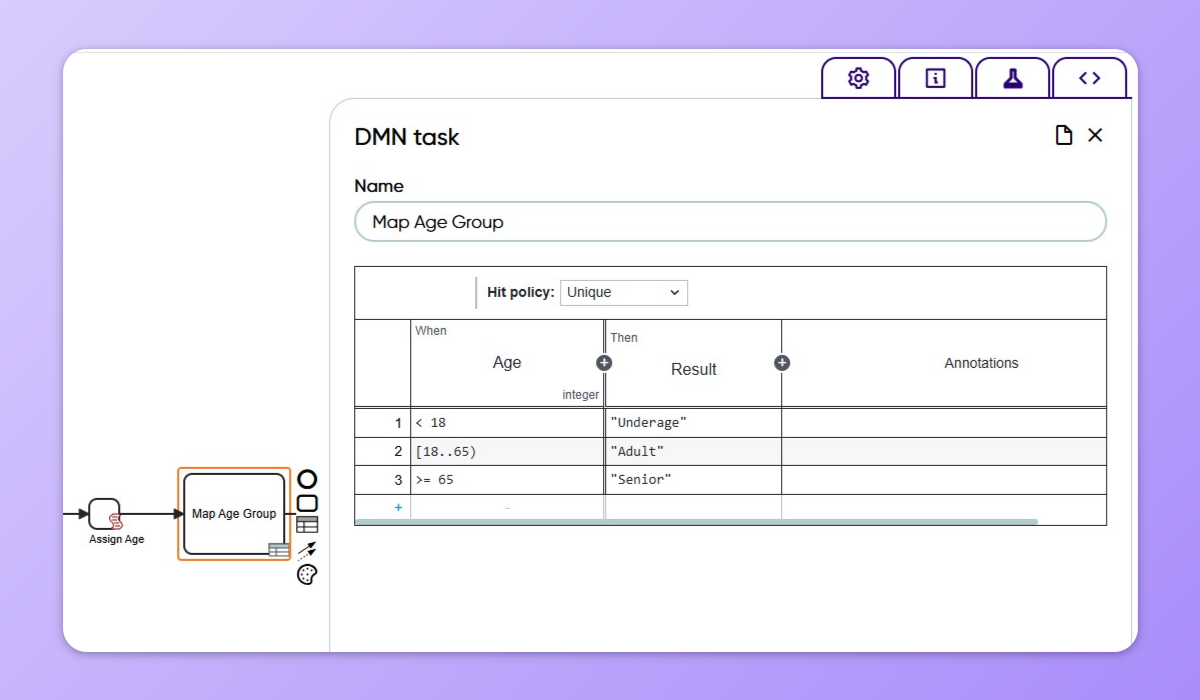
Now you can define the rules that map age ranges to categories. Click the plus symbol at the bottom of the table to add rows for each rule. In the input column for each row, you write the FEEL expression that defines when this rule matches. In the output column, you write the value that should be returned when the rule matches.
For age categorization, your rules might look like this. In the first row, enter < 18 in the input column and "Child" in the output column. The expression means any age value less than eighteen will result in the Child category. In the second row, enter [18..65) in the input column and "Adult" in the output column. This FEEL syntax means values greater than and including eighteen, and up to but excluding sixty-five. In the third row, enter >= 65 in the input column and "Senior" in the output column for ages above sixty-five.

The square and round brackets in FEEL expressions indicate whether the boundary value is included or excluded. A square bracket includes the value while a round bracket excludes it. So [18..65) means greater than and including eighteen, and up to sixty-five but excluding sixty-five exactly.
Using the Result
After the DMN Task executes, you can access its result in subsequent shapes. The result is available through the standard result reference syntax. If you named your DMN Task "Age Categorization", you would access the output using #result[Age Categorization].AgeGroup. This gives you the string value like "Adult" or "Senior" that you can use in further processing, logging, or routing decisions.
You might use this in a Return shape to send the category back as a response, or in an Exclusive or Inclusive Decision to route the Process flow differently based on the age group. The DMN Task has transformed your numeric age value into a categorical value through a clear, maintainable decision table.
Example Two: Status Code Translation with Multiple Outputs
A common integration scenario involves translating status codes from one system's format to another. Sometimes the target system requires not just a single status value but multiple related fields. For instance, you might need to map an incoming status code to both a primary status category and a secondary status detail. DMN Task handles this elegantly by supporting multiple output columns.
Configuring Multiple Outputs
Add a DMN Task to your Process and configure the input column. Set the Expression to var.incomingStatus to reference the status value from your source system. Set the Expression Language to FEEL and the Type to string since status codes are text values. Give it an Input Variable name like statusInput.
The key difference in this example is that you need two output columns instead of one. Click the plus symbol above the output area twice to create two output columns. Configure the first output with the name Status and type string. Configure the second output with the name Category and type string. Now each rule can specify values for both outputs simultaneously.

Defining Translation Rules
Your rules now have one input column and two output columns. Each row maps one incoming status code to both output fields. For example, when the input is "ASSIGNED", you might want the Status to be "In Progress" and the Category to be "Not started". You would enter these three values across the columns in one row. Similarly, an input of "WAITING" might map to Status "On Hold" and Category "Pending".
In FEEL, string comparisons use a single equals sign. Your input expression would simply be "ASSIGNED" to match that exact string. The DMN engine interprets this as an equality check against the input variable. You can add as many rows as you have status codes to map, building a comprehensive translation table.

Accessing Multiple Outputs
When you access the result of this DMN Task, you can retrieve both output values using their configured names. If you named the DMN Task "Status Translator", you would access the values as #result[Status Translator].Status and #result[Status Translator].Category. You can then use these values in subsequent shapes to send the properly formatted status information to your target system or to make routing decisions based on the category.
This approach centralizes all your status mapping logic in one place. When new status codes are added or mappings change, you simply update the DMN table rather than hunting through code to find and modify conditional statements. The visual table format makes it easy to spot gaps or inconsistencies in your mapping coverage.
Last updated
Was this helpful?

